How to Troubleshoot Common Issues with DSC Usage
How to Troubleshoot Common Issues with DSC Usage easily with expert tips from CA4Filings for smooth digital signing and filing processes.
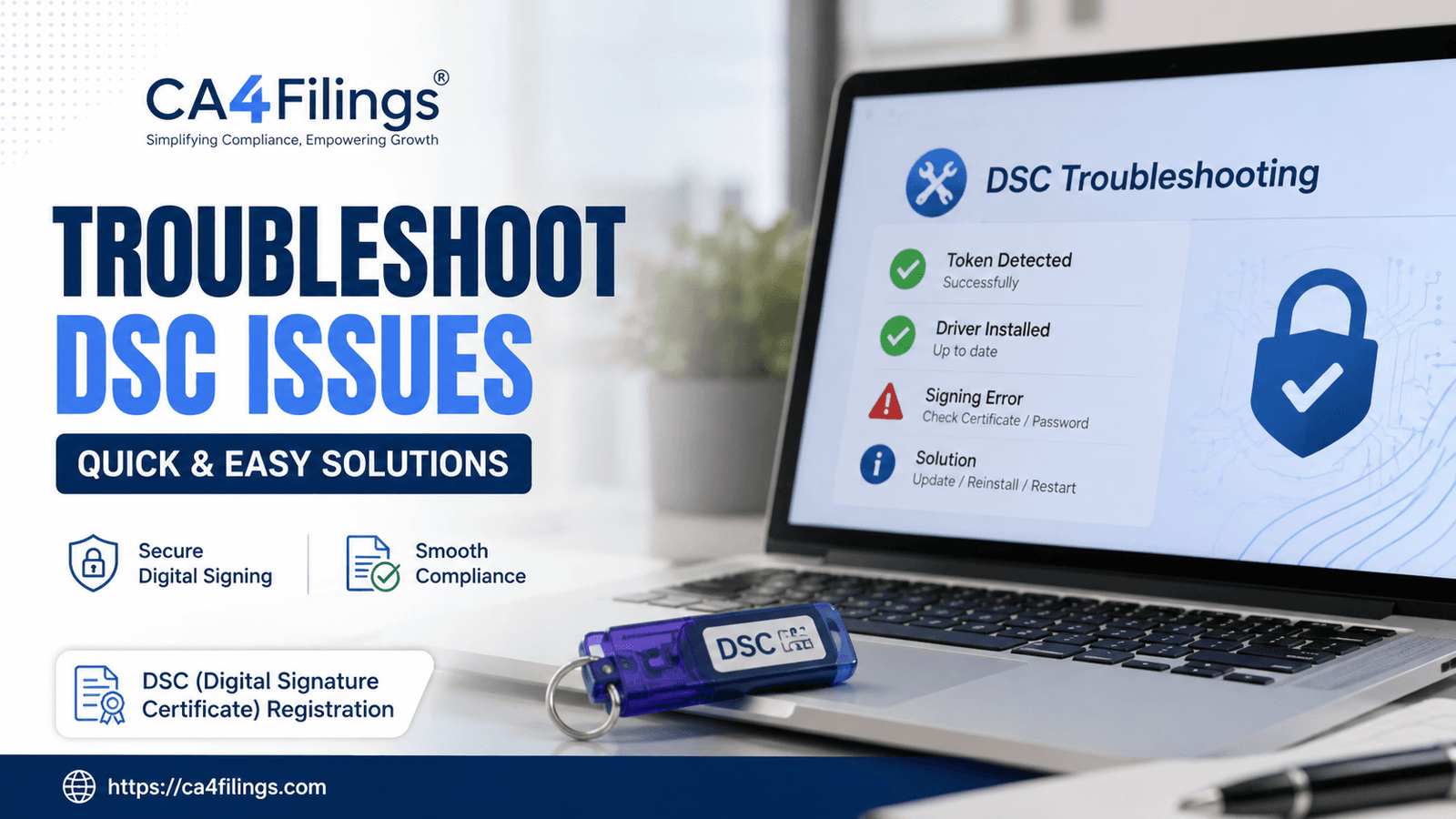
Digital Signature Certificates (DSCs) have become an essential part of online compliance and business operations in India. Whether you are filing MCA forms, GST returns, Income Tax filings, or participating in e-tenders, DSCs help ensure secure and authenticated transactions. However, many users regularly face technical problems while using their DSCs, leading to delays, frustration, and filing errors.
In this guide on How to Troubleshoot Common Issues with DSC Usage, we at CA4Filings will explain the most common DSC problems, their causes, and practical solutions in a simple and easy-to-understand manner. If you are planning to apply for or renew your DSC (Digital Signature Certificate) Registration, understanding these troubleshooting methods can save you valuable time and avoid unnecessary compliance issues.
Why DSC Issues Occur Frequently
Before understanding How to Troubleshoot Common Issues with DSC Usage, it is important to know why these problems happen in the first place.
Most DSC-related issues occur because of:
- Browser compatibility problems
- Expired DSC certificates
- Incorrect driver installation
- Java utility errors
- Token detection failures
- Outdated emSigner services
- System security settings
Even experienced professionals sometimes face these technical glitches during urgent filings.
How to Troubleshoot Common Issues with DSC Usage During Token Detection
One of the most common DSC problems is when the USB token is not detected by the system.
Check Whether the Token Driver Is Installed
The DSC token requires proper drivers to communicate with your computer.
Steps to resolve:
- Insert the USB token properly
- Open Device Manager on your computer
- Check whether the token device appears
- Reinstall the driver from the token provider’s website if needed
- Restart the system after installation
Try Another USB Port
Sometimes the issue is not with the DSC but with the USB port itself.
Practical tip:
- Use a direct USB port instead of external hubs
- Avoid damaged or loose ports
- Test the token on another computer
This simple step often resolves detection issues quickly.
How to Troubleshoot Common Issues with DSC Usage Related to Expired DSC
Many users do not realise their DSC has expired until filing deadlines approach.
How to Check DSC Validity
You can verify the validity period through:
- Token management software
- DSC utility tools
- Certificate properties in your browser
Solution for Expired DSC
If the DSC has expired:
- Apply for DSC renewal immediately
- Update the renewed certificate in the portal
- Remove old certificates to avoid conflicts
At CA4Filings, we often advise clients to renew their DSC at least 15–20 days before expiry to avoid last-minute issues.
Browser Compatibility Problems in DSC Usage
Another major aspect of How to Troubleshoot Common Issues with DSC Usage involves browser settings.
Government portals regularly update their systems, and some browsers may not support DSC utilities properly.
Recommended Browsers
Generally, the following browsers work best:
- Google Chrome
- Microsoft Edge
- Mozilla Firefox (limited cases)
Avoid outdated Internet Explorer versions unless specifically required.
Enable Required Permissions
Ensure the browser allows:
- Pop-ups
- JavaScript
- Digital signature extensions
- emSigner access
Clearing browser cache can also help resolve many DSC signing failures.
How to Troubleshoot Common Issues with DSC Usage When emSigner Is Not Working
Many MCA and GST portal users encounter emSigner-related errors.
Common emSigner Errors
You may see messages like:
- “Please start emSigner”
- “Failed to establish connection”
- “Digital signing service unavailable”
Steps to Resolve emSigner Problems
Restart emSigner Service
- Close the browser
- Stop the emSigner service
- Restart the utility
- Reopen the portal
Run as Administrator
Sometimes permissions prevent emSigner from functioning correctly.
- Right-click the emSigner utility
- Select “Run as Administrator”
Reinstall emSigner
If problems continue:
- Uninstall the old version
- Download the latest version from the official portal
- Install it again properly
This is one of the most effective methods in How to Troubleshoot Common Issues with DSC Usage.
Java Errors While Using DSC
Although many portals have reduced Java dependency, some systems still require Java support.
Common Java Issues
Users may face:
- Java blocked messages
- Security certificate errors
- Utility launch failures
Solutions for Java Errors
- Install the latest Java version
- Add the portal to Java Exception Site List
- Enable Java content in browser settings
- Clear Java cache periodically
Real-world example: Many e-tender portals still depend heavily on Java utilities. Businesses participating in government tenders often face signing issues simply because of outdated Java installations.
Incorrect Password Errors in DSC Token
Many users repeatedly enter incorrect token passwords and accidentally block the token.
What Causes This Issue
- Forgotten password
- Caps Lock enabled
- Multiple failed attempts
How to Handle It
- Carefully re-enter the password
- Check keyboard settings
- Contact the token provider for reset options if blocked
Important note: Some DSC tokens permanently lock after multiple incorrect attempts.
How to Troubleshoot Common Issues with DSC Usage on MCA Portal
The MCA portal is one of the most common platforms where DSC issues arise.
Common MCA DSC Errors
- DSC not registered
- Invalid signatory details
- Signature mismatch
- Token not appearing
Solutions
Re-register DSC
Sometimes the DSC must be freshly registered on MCA.
Verify PAN Details
The DSC name and PAN details must exactly match MCA records.
Update Browser Settings
Ensure browser security settings are not blocking the signing utility.
For directors and company professionals, understanding How to Troubleshoot Common Issues with DSC Usage on MCA can prevent filing delays and penalties.
Best Practices to Avoid DSC Problems
Preventive measures can reduce most DSC-related issues significantly.
Keep Software Updated
Always update:
- Browser versions
- DSC drivers
- emSigner utilities
- Java software
Maintain System Security
- Use antivirus protection
- Avoid unknown software installations
- Scan the system regularly
Store DSC Tokens Safely
Treat your DSC token like an important financial document.
Avoid:
- Sharing passwords
- Using public computers
- Leaving tokens plugged in unnecessarily
FAQs on How to Troubleshoot Common Issues with DSC Usage
Why is my DSC not showing on the GST portal?
This usually happens because of browser issues, inactive emSigner utility, or missing token drivers.
Can I use one DSC on multiple computers?
Yes, but the required token drivers and utilities must be installed on each system.
What happens if my DSC expires during filing?
The portal may reject the filing. You must renew the DSC and update it on the relevant portal.
Why does emSigner keep disconnecting?
This can happen due to firewall restrictions, outdated software, or browser compatibility issues.
How many years is a DSC valid in India?
DSCs are generally issued for 1 or 2 years, depending on the selected validity period.
Understanding How to Troubleshoot Common Issues with DSC Usage is extremely important for businesses, professionals, directors, and taxpayers who regularly deal with online compliance. Most DSC problems are technical in nature and can be resolved with proper troubleshooting steps, updated software, and correct system settings.
However, if DSC issues continue repeatedly, professional guidance can save time, reduce stress, and avoid filing delays. At CA4Filings, we help businesses and individuals with smooth DSC registration, renewal, installation support, and compliance assistance across India.
If you are facing recurring DSC problems or need expert help with digital signatures, connect with CA4Filings today for reliable and hassle-free support.
Latest Updates
ca4filings.com Services
























-registration.png)